What you'll achieve
You'll read a policy and confirm that you've read, understood and accepted its requirements. Backstory records the policy version and the time you completed your attestation.
In this guide, attestation means making that recorded confirmation. Only complete it when the statements on screen are true for you.
Who this is for
This guide is for an Organisation Participant who has been asked to complete a policy attestation. You do not need licensed access to the rest of the Backstory platform.
Before you start
You need:
- your Backstory sign-in details;
- an active policy attestation in your list;
- enough time to read the policy carefully; and
- the name of the person to ask if a requirement is unclear.
Complete your attestation
1. Open your attestation list
Sign in to Backstory, open My Universe, then choose Attestations. The Pending Policy Attestations section shows the policies waiting for you.
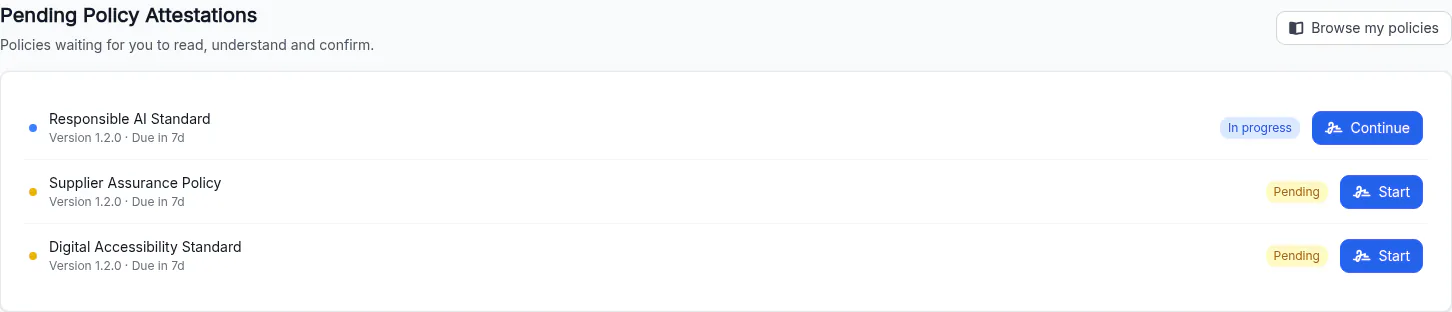
Your list shows what needs attention. A policy you have already opened shows Continue instead of Start.
2. Start the policy
Choose Start beside the policy. If you began earlier, choose Continue.
Backstory opens the policy reader and takes you to your attestation.
3. Read the policy
Choose Read policy and read the current version in full. When you're ready to continue, return to My Attestation and choose I have read this policy.
Do not select this action until you have read the policy. If anything is unclear, stop and ask the person who assigned it or the policy owner.
4. Complete the knowledge check, if there is one
Some policies include a short knowledge check. Answer each question and submit your answers. The screen shows the pass mark for that check-in.
If you do not reach the pass mark, follow the message on screen. If you're still unsure about the policy, ask for help before continuing.
If there is no knowledge check, Backstory takes you straight to the confirmation step.
5. Confirm your attestation
Read both statements, then tick them only if they are true:
- I have read and understood the contents of this policy.
- I accept the requirements and agree to comply with this policy.
Choose Complete attestation.
Check it worked
Backstory shows Attestation complete and confirms that your acknowledgement of the policy version has been recorded.
To see your record later:
- return to My Universe > Attestations;
- choose History; and
- find the policy, version, status and completion date.
If something goes wrong
| What you see | What to do |
|---|---|
| The policy is not in your list | Check that you are in the right organisation. If it is still missing, ask the person who assigned it. |
| Complete attestation is unavailable | Make sure both confirmation boxes are ticked. If there was a knowledge check, make sure you completed it. |
| You do not reach the pass mark | Read the relevant part of the policy again, follow the on-screen message, or ask the policy owner for help. |
| You need to stop partway through | Return to the attestation list later and choose Continue. |
| The page will not load | Refresh the page once. If the problem continues, contact your organisation administrator. |
Your judgement matters
An attestation is your own confirmation. Do not complete it for someone else, and do not confirm something you do not understand or cannot follow. Asking a question is the right next step when the policy is unclear.
Do not copy confidential policy content into an external chat, email or support request. Describe the issue without sharing sensitive text unless your organisation has approved that route.
What's next
If your pending list contains another policy, open it when you're ready. Otherwise, you're done.
Need help?
Contact your organisation administrator or use your organisation's Backstory support route. Include the policy title and describe where you became stuck. Do not include your password or confidential policy text.